See the production take shape.
Review variations and reuse a take
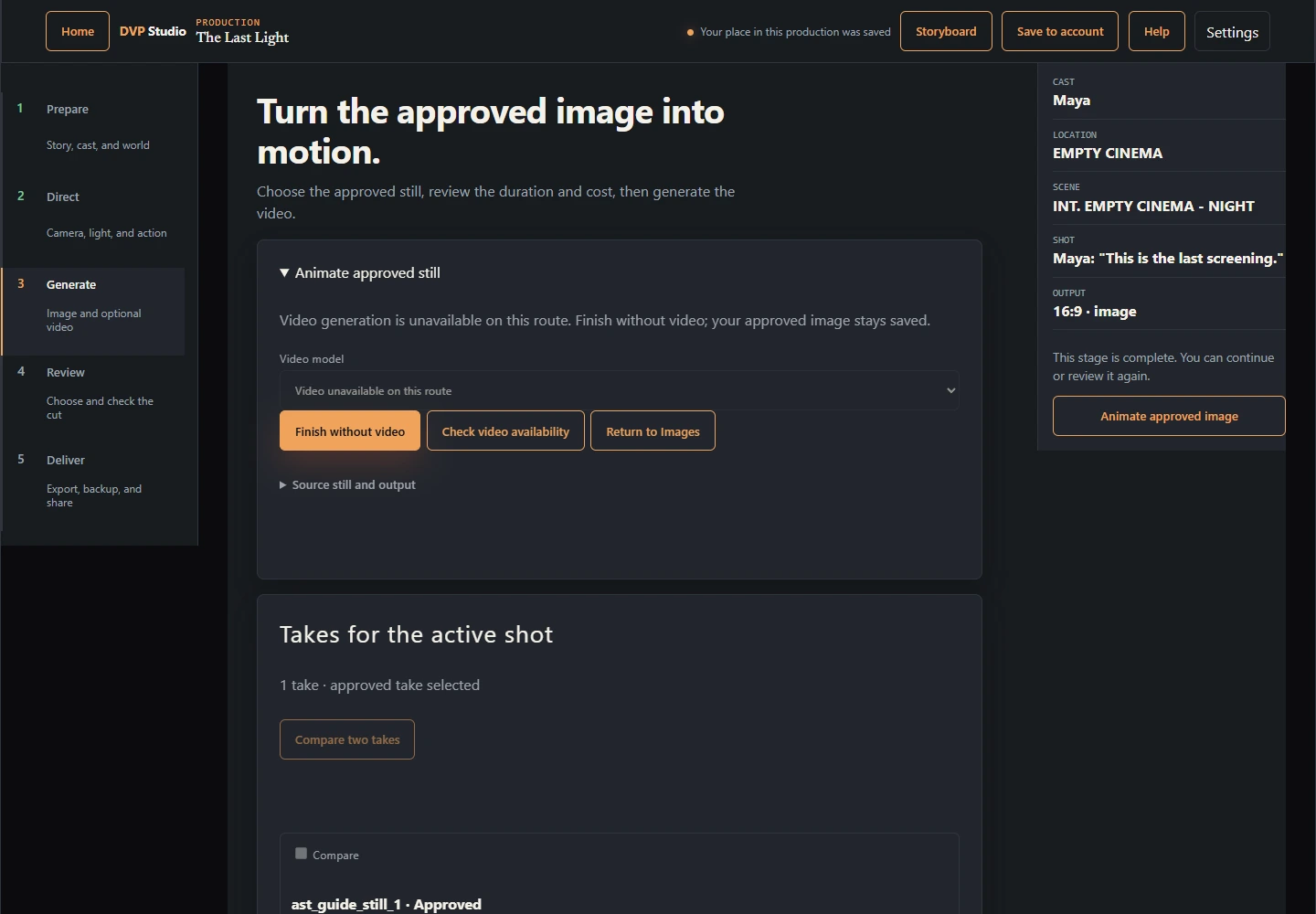
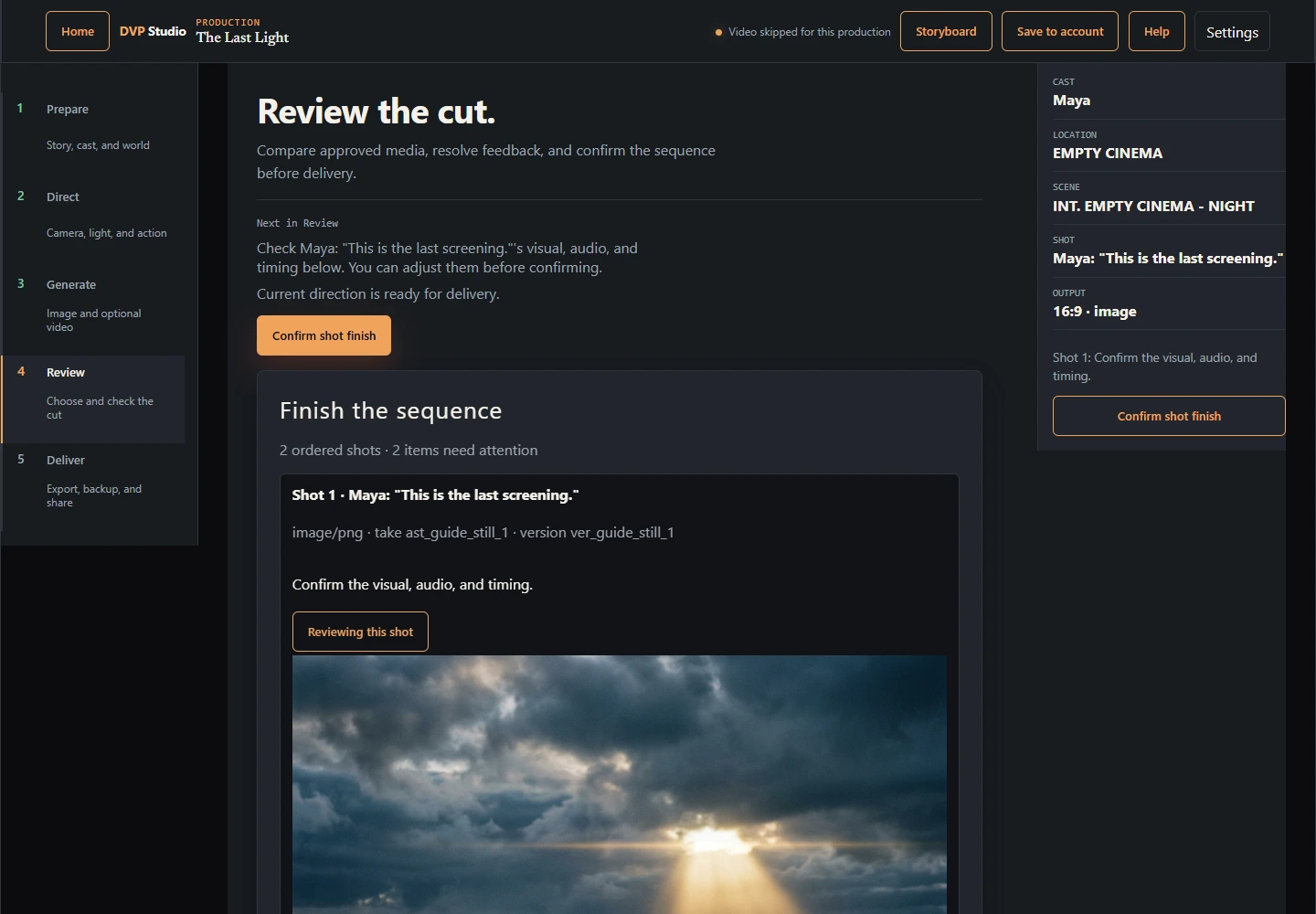
Take 1, Take 2, and later numbers follow the saved order. View a take without selecting it, or choose Use this take to approve it for the shot. Compare two takes of the same kind. Open Refine or reject for another direction, an area edit, character replacement, grading, or rejection when available. Refinement creates a new candidate; the original remains.
Favorites organize your work; approval selects a take for the shot. After approval, download the original image or video beside the shot, even while other shots are unfinished. Cut trims, timing and separately selected audio are not applied to that file. Use Review this shot for a managed cut; Animate this image is optional and has its own cost review.
Image reveal supports arrow keys. Video comparison starts only when you press Play both, pauses while buffering, and stops at the shorter clip. Choose one audio source or keep both muted. Edit image, Animate, and Vary direction keep their exact source and existing approval and cost review requirements.
Edit an area of an image
Open an existing image take, select an area, describe the change, and inspect the mask. Save the production to your account before cost review; the accepted selection must finish syncing. The model is asked to preserve the rest of the image, but unchanged pixels are not guaranteed. The result is a separate unapproved take; your original stays available for comparison and reuse. When a saved mask is available, choose Load saved selection to reopen its exact pixels as an unaccepted draft. You can brush, Undo, and Accept selection again; loading never restores cost approval or starts a render. If the saved mask is missing, retrace the area. To return to an ordinary still render, choose Discard prepared edit; Clear selection only changes the local mask draft. Rendering requires a qualified route and your explicit confirmation. If none is enabled, cost review explains the block and Render stays unavailable.
Use visual direction presets
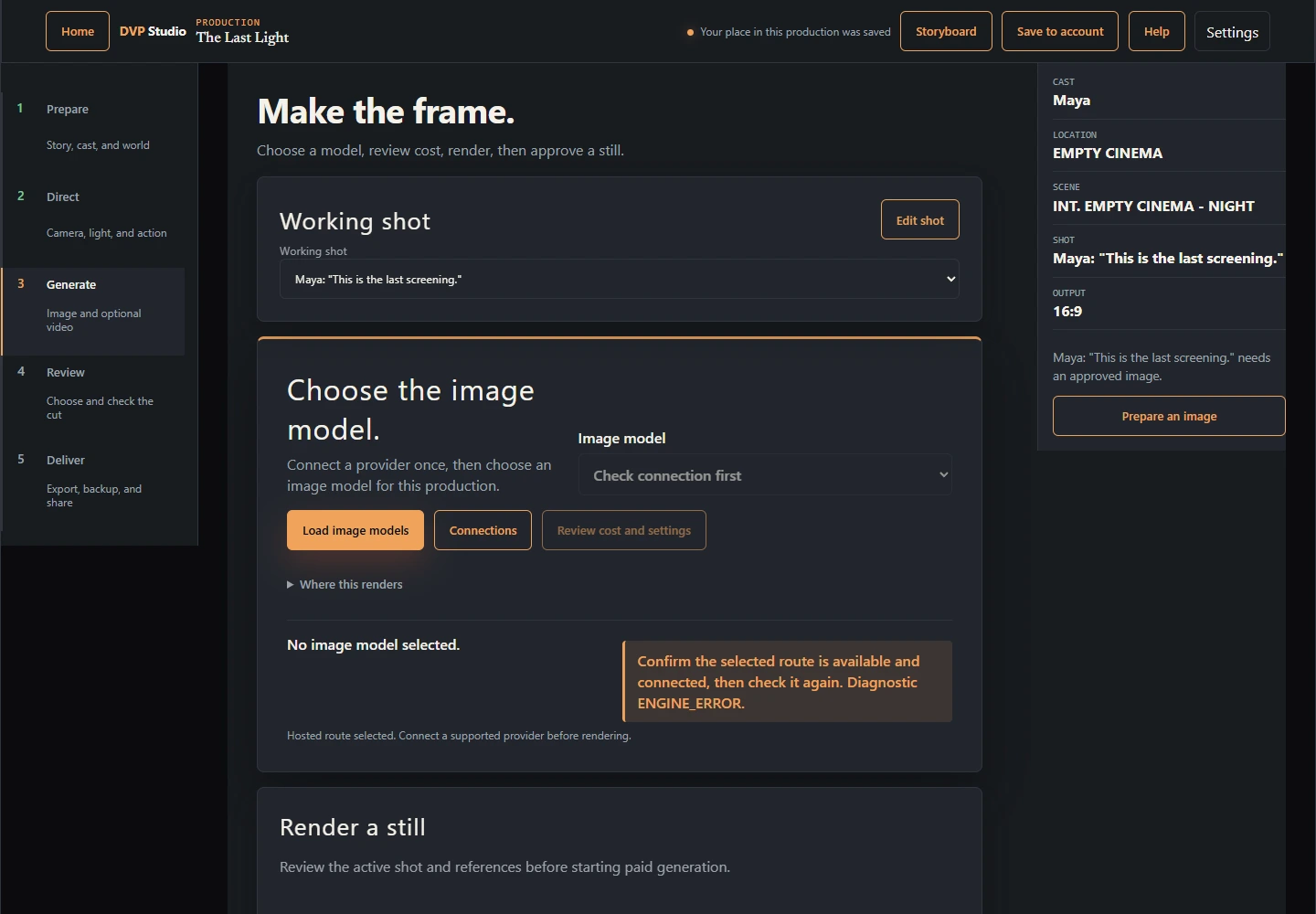
Hosted providers are the default for images and the connection for all new video. Choose optional Local ComfyUI images under Where this renders; Studio remembers that image preference when you return from Video. A local approved image requires Upload local image for hosted video before cost review. That button sends only the selected image to your signed-in DVP hosted storage, verifies the file checksum and dimensions, retains the original local take, and selects the hosted copy. It does not generate video or approve spending. Source-image uploads support PNG, JPEG and WebP up to 8 MiB. The copied file is unchanged; generated results can still alter visual details.
Preview the fields a preset changes, then apply it. Presets guide the model;
review the resulting image or motion before approving it.
Generate keeps unapplied direction separate from Direct. In Recorded generation details, a hosted take with complete saved authoring offers Review recorded direction: images preview action, camera and look as shot overrides; videos preview action and camera motion. Review and Apply uses one undoable creative edit and requires fresh cost review. Current cast, references, source still, dialogue and continuity stay selected. Historical model, seed, duration, resolution and provider options are shown for inspection and are not automatically selected. A take with only a recorded action can load that action into a draft. For an older take, Retrieve older request details reads its saved execution request without starting another render; older authoring may still be unavailable. Apply or discard each draft before cost review. Video presets guide motion; return to the source image to change its appearance. A raw prompt override omits structured preset controls.
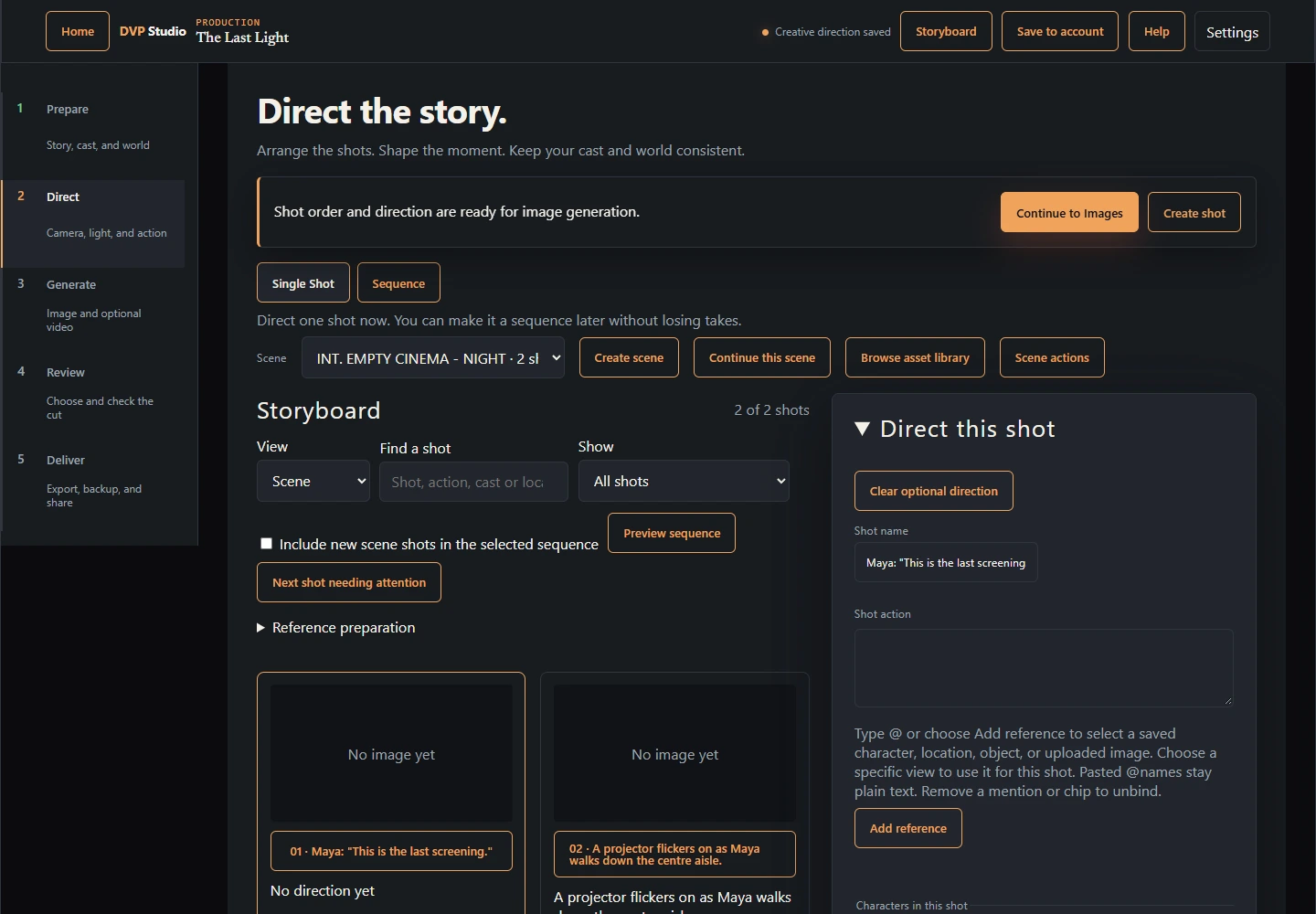
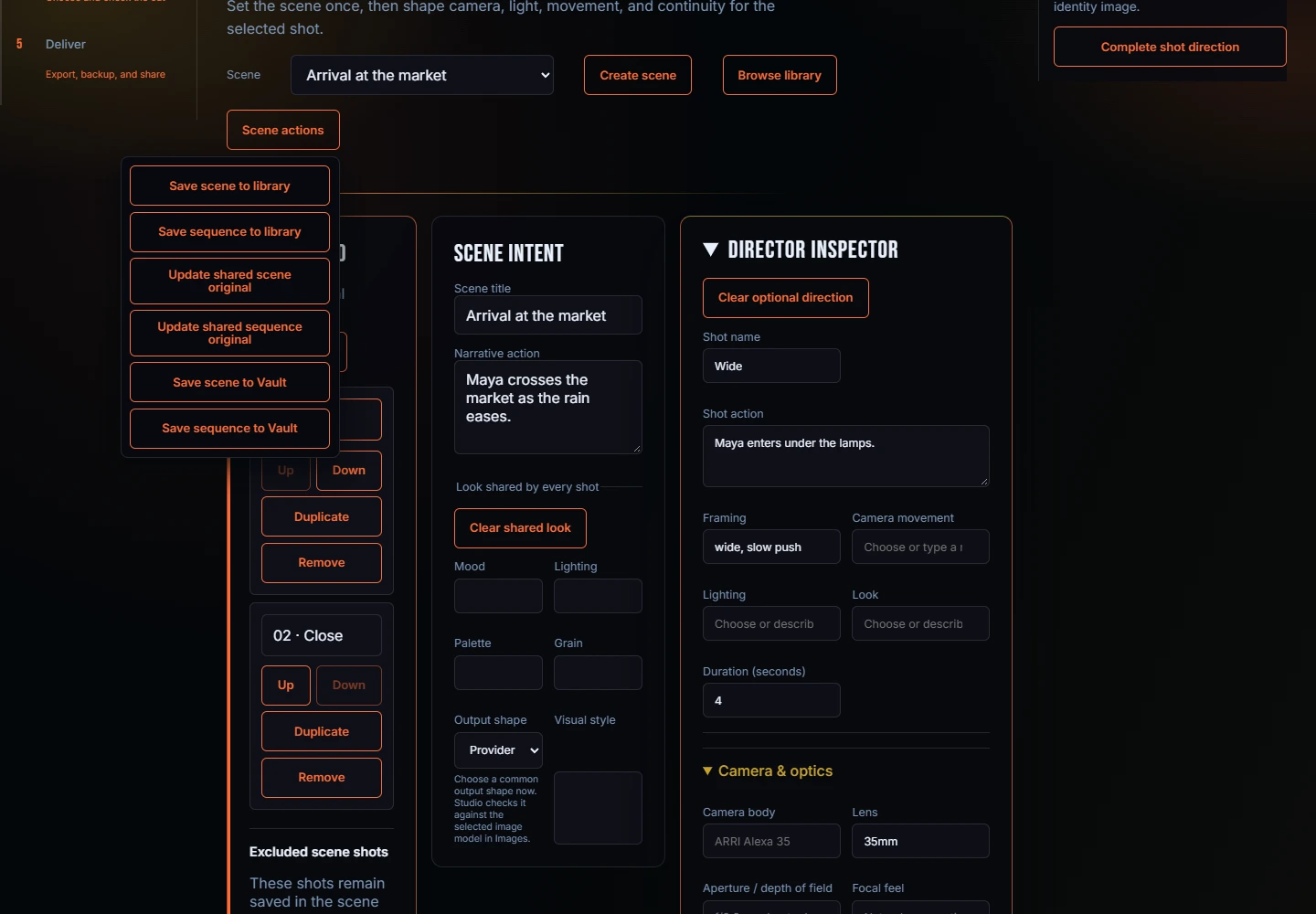
Direct is your editable storyboard. Search for a shot, filter for missing direction or images, and use Next shot needing attention to continue. If direction changes after generation, the approved take stays safe and gets a review notice. Keep current take records your review against the current settings; it does not rewrite the image's generation history. Older takes may show Original settings unavailable.
Production look in Prepare sets shared look and director guidance. Direct shows each effective value and its Production, Scene or Shot source. Clear value removes that value from the image direction; Use inherited value resumes the shared setting. Shared changes and reference replacements show an impact preview before Apply. Vary this shot and Apply direction to selected shots let you choose which field groups to preserve or change; preservation records intent, not a visual guarantee. Action continuity records start/end descriptions, screen position and prop holder/hand/state. Previous-end copying is always previewed and explicitly applied.
Suggest direction sends your brief and the current shot’s written context to Claude using your own Anthropic key; that text request may incur a provider charge. It returns editable, individually selectable camera, action and lighting suggestions for this shot. Preview their impact before Apply. Linked action references cannot be rewritten by the suggestion. Applying direction does not generate media or approve a take; use the ordinary model and cost review if you later want a new image or video.
Open Direction history and checkpoints in Direct to undo committed direction or redo it. Typing until blur is one edit; a bulk Apply is one edit. Studio keeps up to 20 session edits within 256 KiB and tells you when earlier edits have been removed. Text fields keep their native undo. Creation, duplication, deletion, ordering, membership and raw source-library changes use their existing controls. Embedded scene direction and variant changes are included; source images and entity records are not rewound.
A named checkpoint includes production defaults, selected shots (up to 20), and optionally the current scene's creative settings. Keep up to five checkpoints, each within 64 KiB and all within 256 KiB; the whole production still has its 2 MiB portable limit. Capacity errors require deleting a checkpoint or choosing fewer shots. Preview restore at the current revision before Apply. Missing objects, stale exact references, unavailable media or a relevant concurrent edit block restoration; Studio never recreates or remaps them. New media, jobs, approvals, review records, payments and cuts remain saved. Restored direction may require fresh review and cost checking. Restore counts as one undo edit.
History clears when you switch production, import a backup, replace it with the account copy or reload. Checkpoints survive in sanitized production backups; editor handoffs and client deliveries omit this private history. A failed device save keeps the attempted draft and original undo position; retry the same action. Failed account saves are visibly device-only; account conflicts must be resolved before history application. Only an owner or editor of an active production can create, delete or restore checkpoints.
Continuity assistance compares metadata and references. It cannot guarantee visual identity in a generated image. Intentional changes can have a continuity note; invalid references still need repair.
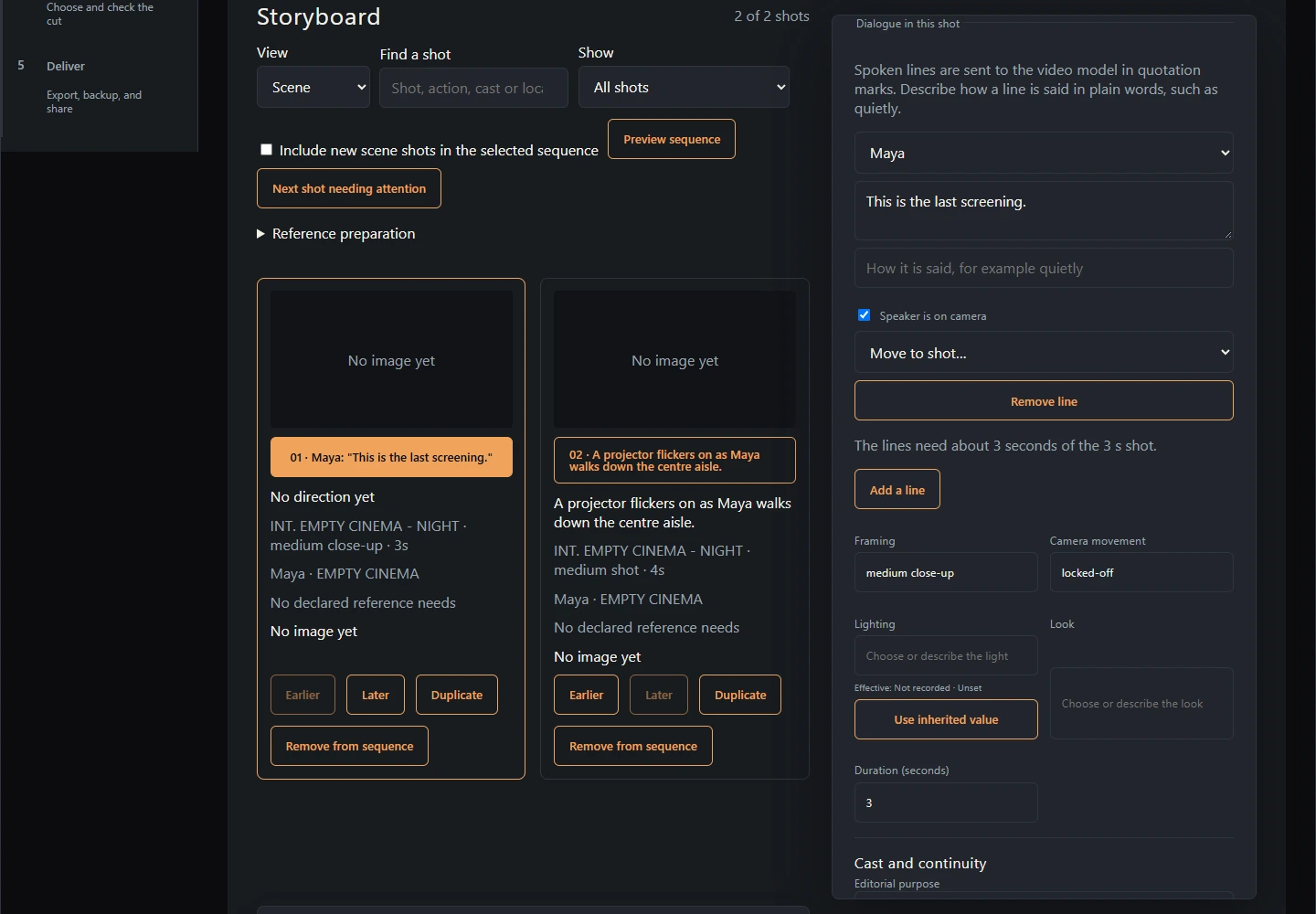
Open Storyboard in the production bar from any workspace. Before generation, each shot has a text placeholder. As stills arrive, the board fills automatically: approved images stay in place, while shots without an approval show their newest non-rejected image as Candidate — not approved. Approving a video keeps its source still on the board.
Whole production groups every shot by scene, including shots outside sequences. Choose a sequence to see its playback order. Open shot returns to Direct; Review takes opens Images. For a shot outside every sequence, open it in Direct and explicitly include it before sequence review. Browsing the board never starts generation or approves an image.
Reference needs declares a source, view and required outfit or lighting match. Available means a matching image has a current human review; Bound means that exact saved image/version is selected for this shot. A thumbnail or approved identity does not attach it.
Choose Prepare in Forge to upload an existing view without provider credentials or explicitly generate one. Check the requested context beside the identity, choose Review this reference, then Use for this shot. The picker shows the exact replacement; other shots retain their references. Replacing a reference creates a new panel and preserves prior images and takes. Changed image bytes, identity, context or selected variant descriptions make review outdated; review again before using it.
Editorial purpose records intent without changing the generation prompt. Blocking notes still direct screen position and eyelines. Select a sequence and choose Preview sequence for a still-only pacing check. Candidate and approved labels stay visible. Unknown timing uses a labeled Assumed 3s hold for playback only; known runtime excludes unknown durations. Preview never saves durations or starts a provider request.
The storyboard is available inside Studio only. It does not create a separate copy of your production, and an unavailable image stays labeled rather than being replaced with a different take.