DynamicVibe Productions
Consistency Keeper Guide CinePrompt AI Tools
Open Tool
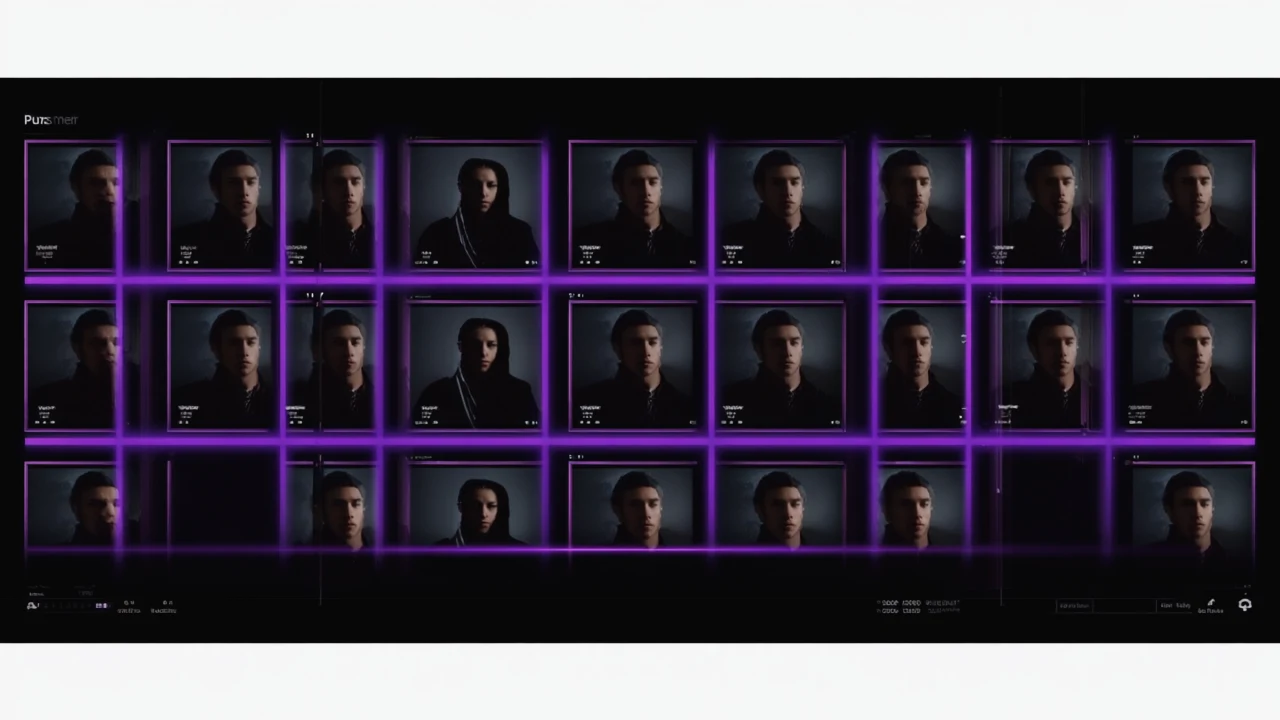
Consistency Keeper cinematic hero

Free Browser Tool · DynamicVibe Productions

Consistency Keeper

Define a visual anchor — character, location, or scene — and generate multiple AI video prompts that hold the same look, feel, and style across every shot.

⏱ 5 minutes to first result 🔑 Anthropic API key required

What You'll Need

Consistency Keeper uses Claude (Anthropic) to generate your prompts, read attached reference thumbnails, and return per-prompt anchor coverage notes. You need an Anthropic account and an API key — the process takes about 90 seconds.

01
Get an Anthropic API key
Go to console.anthropic.com/settings/keys, sign in or create an account, and click Create Key. Copy the key — it starts with sk-ant-.
02
Open Consistency Keeper
Navigate to dynamicvibe.net/consistency-keeper/. No login, no install — runs entirely in your browser.
03
Paste your key into the BYOK panel
Click the Anthropic API Key panel at the top of the tool. Paste your key and click Save. The status badge turns green. Your key is stored locally in your browser — never sent to DVP servers.

Using Consistency Keeper

Consistency Keeper has two panels: Define Your Anchor on the left sets the visual DNA that locks across every shot; Describe Your Shots on the right lists what you want the camera to capture. The tool generates multiple prompt variations per shot, each scored for how consistently they embed your anchor details.

01

Build (or Load) Your Reference Gallery

  1. Click the Reference Gallery panel to expand it. This is an optional place to keep named local thumbnails for recurring subjects.
  2. Click + Add Images and upload one or more reference images — character stills, location photos, mood boards. Each is stored as a named thumbnail in your browser.
  3. When you generate, saved reference thumbnails are attached to the Claude request so the model can use visual evidence alongside your written anchor. Click any gallery card to also add its name to the Anchor Description.
If you're working with a character, use the Character Sheet Builder first (linked in the Anchor panel) to generate a VFX-standard 7-panel reference before coming here. That gives Claude a precise, angle-locked description to work from.
02

Define Your Anchor

  1. In the Define Your Anchor panel, choose a Subject Type: Character, Location, Full Scene, or Object. This tells Claude what to hold constant.
  2. Fill in the Anchor Description — be as specific as possible. For a character: describe appearance, clothing, age, build, and any distinctive features. For a location: set, time of day, architecture, and mood.
  3. Set Visual Style & Color Grade (e.g., "Neon-drenched cyberpunk"), Camera & Lens Style, and Lighting Signature. These three fields are woven into every generated prompt to maintain the cinematic look.
The more precise your anchor description and reference set, the stronger your anchor coverage notes will be. Vague anchors produce prompts that drift between shots.
03

Describe Your Shots

  1. In the Describe Your Shots panel, list each shot or variation you need — one per line works best. Examples: "Close-up of her face, turning toward camera", "Wide shot walking through a crowded market".
  2. Add optional Action / Motion Notes (e.g., "All shots slow motion") to apply globally across every shot.
  3. Set the Number of Prompt Variations using the +/− counter. Three variations per shot is a good starting point — it gives you options without overwhelming you.
  4. Select your Target Platforms (Kling, Runway, Veo, Midjourney, etc.). Each platform gets prompts formatted to its specific style requirements.
04

Generate and Review Results

  1. Click Generate Consistent Prompts. Claude generates all variations — expect 10–20 seconds depending on shot count and platforms selected.
  2. Review the output cards. Each card shows the shot name, platform tag, fully formatted prompt, anchor coverage, locked elements, coverage risks, reuse notes, and seed guidance.
  3. Use the Copy button on any prompt card, or click Copy All to grab all generated prompts at once.
  4. Use the Reference Card button to export a structured reference document containing your anchor, style locks, attached references, generated prompts, consistency notes, and platform reference fields — useful for sharing with collaborators.
  5. Use Script to Shots to pass your prompts directly into the shot list tool.
If your anchor coverage notes are weak, return to the Anchor panel and add more specific details — particularly physical attributes and distinctive style markers.

What You'll Get

Multiple prompt variations per shot, each formatted for your target platforms with anchor coverage notes, coverage risks, reuse notes, and seed guidance.

Get More From Consistency Keeper

Use FrameDNA to extract the visual DNA from a reference film still first, then paste the DNA results directly into the Anchor Description. This gives Claude concrete color temperature, contrast, and lighting values rather than subjective words.
The Reference Gallery persists across sessions in browser storage. Build a library of named reference thumbnails for recurring characters or locations — they are attached to generation and can also append their reference names to the anchor context.
Generate 4–5 variations per shot, then cherry-pick the best one for each platform. More variations means more material to work with, and Claude varies the phrasing to emphasize different aspects of the anchor.
For a multi-character scene, run Consistency Keeper once per character with the Character subject type, then combine the resulting prompt blocks manually. Trying to lock two characters in a single anchor dilutes the specificity.
The Script to Shots integration button lets you send your Consistency Keeper output directly into the shot list tool to get a full production-ready shot list. Use this after you have your prompts locked.
Add motion notes in the Action / Motion Notes field rather than inline in each shot description. Global motion instructions (e.g., "all shots handheld with subtle shake") apply consistently to every shot without duplicating text.