01 What the Vault is
DVP Vault stores the reusable memory behind your campaigns: projects, assets, references, tools, prompt recipes, Motion DNA, and finished packs. For CastLoop, the saved record is the prompt recipe and safe lineage; use CastLoop's download action for the reviewed image or video until durable media attachments exist. It is the layer that answers "what tools exist, what's approved, what can Campaign Engine use right now?"
It does not replace Campaign Engine. Campaign Engine builds the campaign outputs; the Vault stores and assembles the source material those outputs are built from.
02 The layout
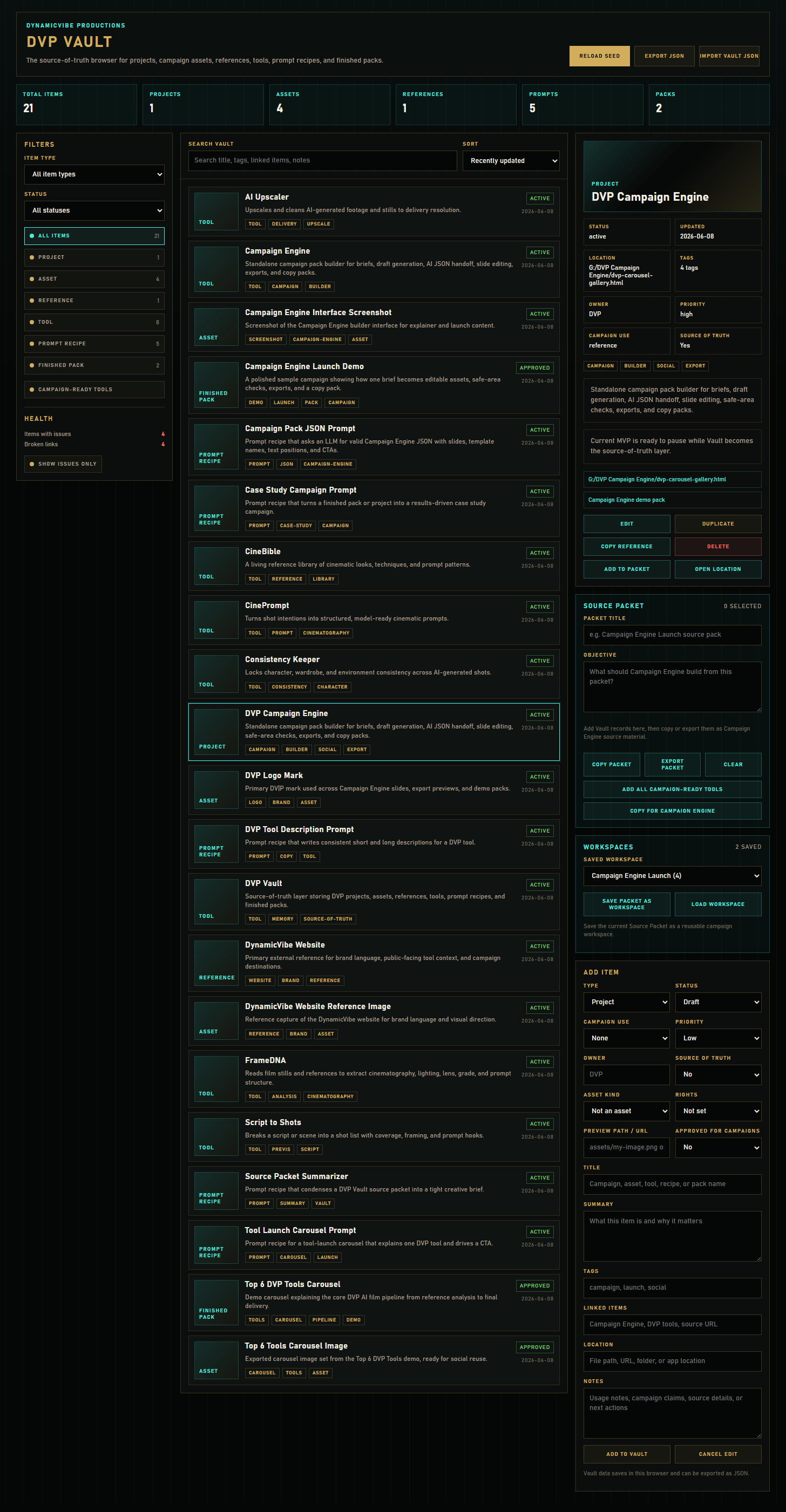
The app is a "Vault OS" shell: a command bar on top, three zones below, and a Source Packet tray docked at the bottom.
- Command bar (top): global search across campaigns, prompts, assets, and references, plus Reload Seed, Export JSON, and Import Vault JSON.
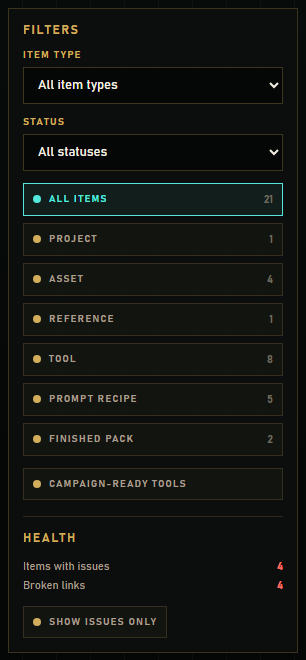
- Library (left): pick a section (Campaign Memory, Creative Directions, Assets & References, Prompt Recipes, Motion DNA, Workspaces, All Records), each with a live count, then Refine by type, status, and sort, and read the Health panel.
- Campaign Memory and records (middle): Campaign Memory is the home, showing saved campaigns as dossier cards with a readiness bar. Every other section shows a searchable, sortable record list.
- Inspector (right): the selected record's Summary, its Lineage strip (VibeBoard direction → Campaign Engine pack → Vault memory), Campaign Audit, and actions. The Add/Edit form lives here as a collapsible panel.
- Source Packet tray (bottom): a collapsible dock holding the Source Packet and Saved Workspaces. It stays tucked away until you open it.
03 Browsing & searching
- Use Item type and Status dropdowns, or the quick type buttons, to narrow the list.
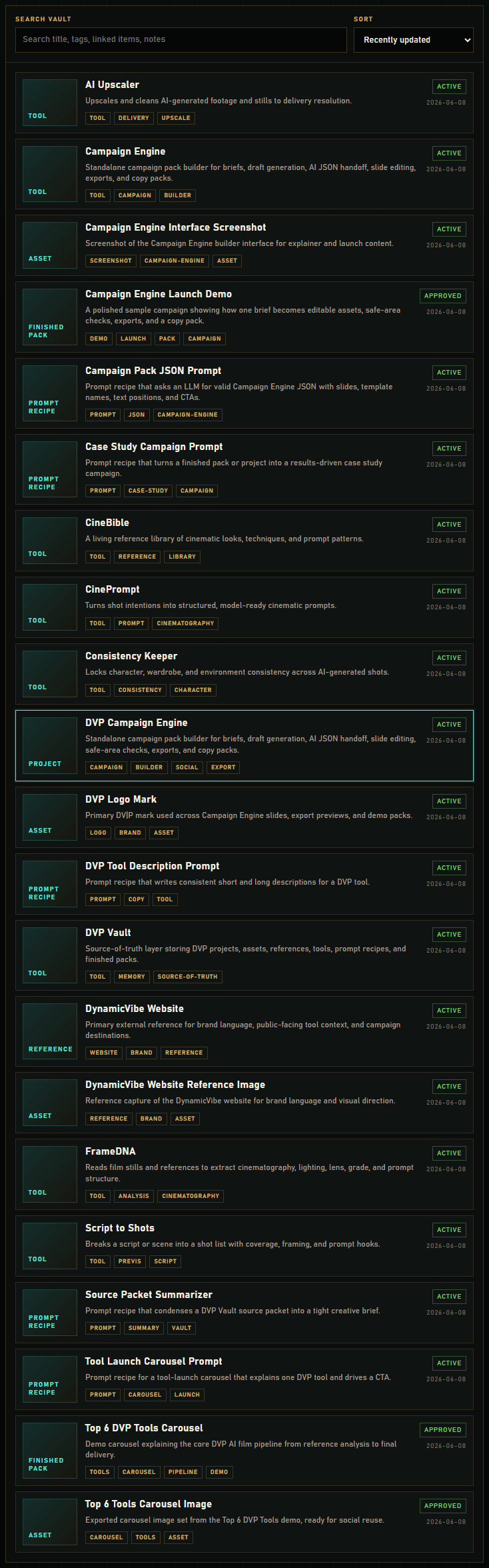
- Type in Search vault to match across title, summary, tags, linked items, location, and notes.
- Change Sort to order by recently updated, title, or type.
- Click Campaign-ready tools to show only tools that are active/approved and flagged for campaign use.
04 Reading a record
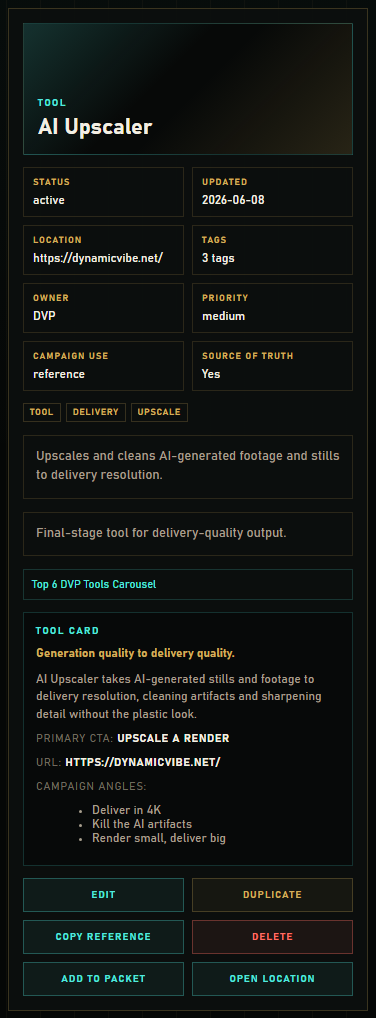
Click any item to load it in the detail panel. Every record shows status, last updated, location, tags, owner, priority, campaign use, and whether it is a source of truth. Three record types add a tailored section:
Tool card
Tools show a short claim, long description, primary CTA, URL, campaign angles, and related prompts — everything you'd want when pitching a tool in a campaign.
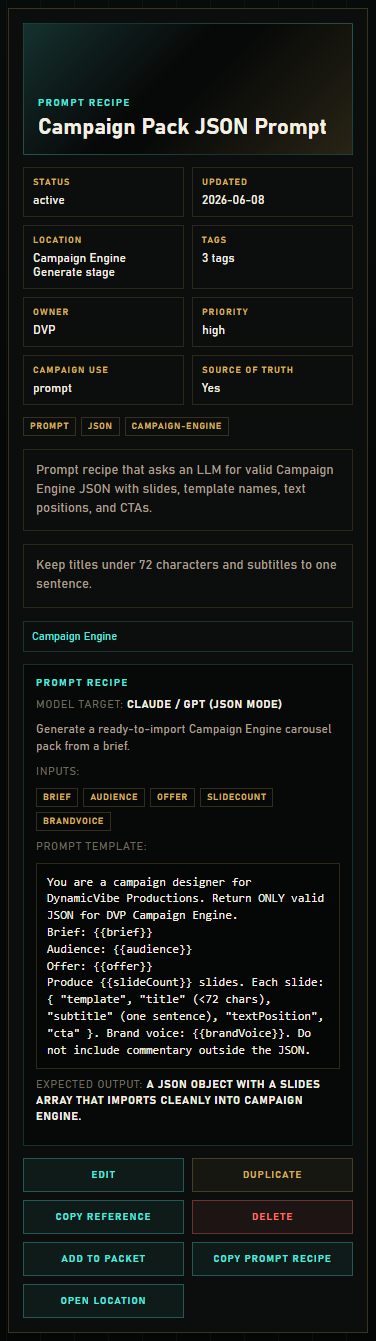
Prompt recipe
Prompt recipes show the model target, use case, inputs, and the full prompt template in a copyable block (see section 7).
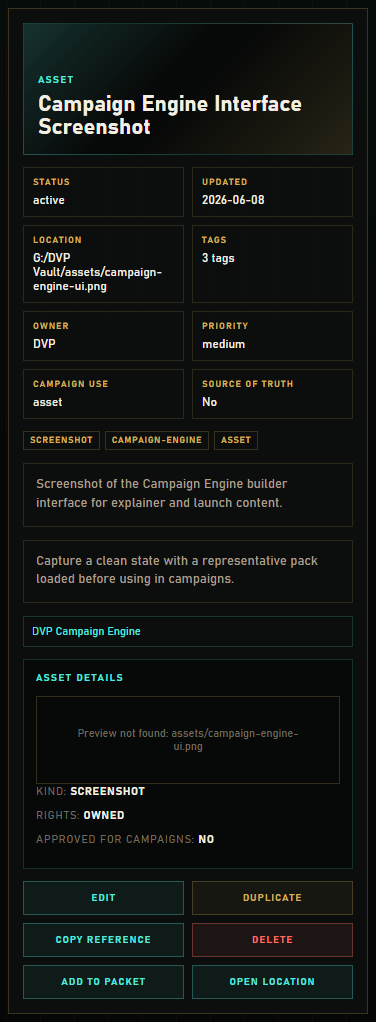
Asset preview
Assets show a preview image plus kind, rights, and whether they're approved for campaigns.
Motion DNA
Motion records show family, direction, subject, schema-format version versus local revision, translator version, parent motion id, the canonical instruction, and any translation warnings as plain text (see Motion DNA records).
05 Add, edit, duplicate, delete
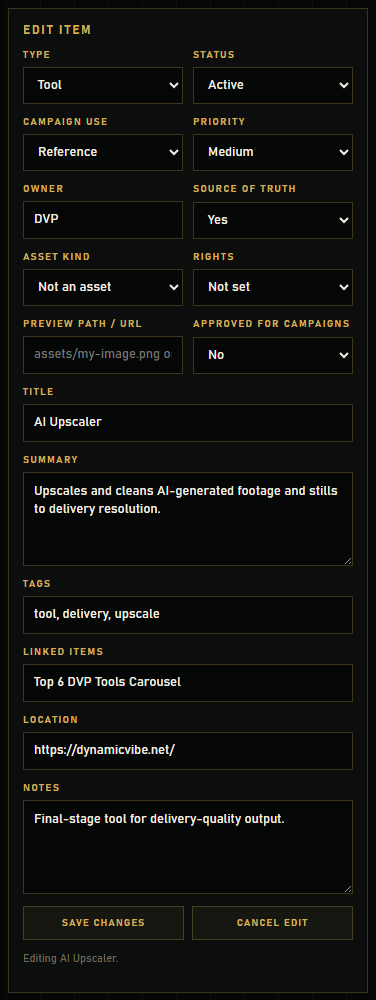
- Fill the Add Item form: type, status, campaign use, priority, owner, source-of-truth, title, summary, tags, linked items, location, and notes. For assets, also fill kind, rights, preview path, and approved-for-campaigns. For Motion DNA records, fill the canonical instruction, translator version, source tool, optional parent motion id, and Motion DNA JSON — see Motion DNA records.
- Click Add To Vault to save.
- To change a record, select it and click Edit — the form fills with its values and the button becomes Save Changes.
- Duplicate makes a draft copy; Delete removes a record (with confirmation).
06 Source Packets → Campaign Engine
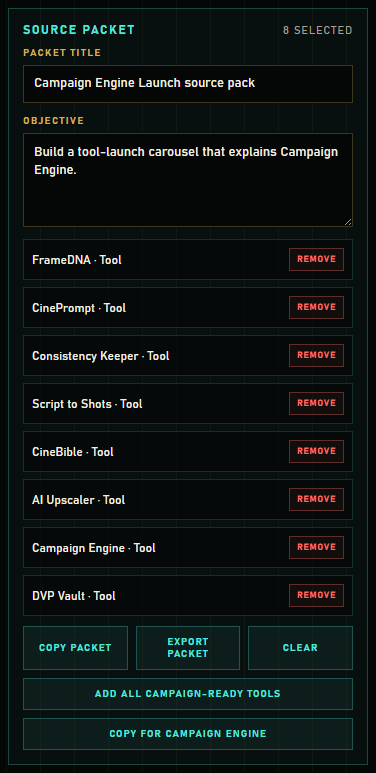
A Source Packet is the bridge to Campaign Engine. Gather the records a campaign needs, then copy them in a Campaign Engine-ready format.
- Select a record and click Add To Packet (or Add All Campaign-Ready Tools to grab every campaign-ready tool at once).
- Give the packet a title and an objective so the downstream brief is clear.
- Click Copy For Campaign Engine to copy a structured reference with Reference links, Reference assets, Required copy, Must include, Avoid notes, and Visual direction — paste it straight into Campaign Engine's References stage.
- Copy Packet copies a plain-text packet; Export Packet saves it as JSON; Clear empties the tray.
07 Prompt recipes
Prompt recipes are reusable, copyable instructions for an LLM. Open a recipe to see its template, then click Copy Prompt Recipe to copy the full recipe (model target, use case, inputs, template, and expected output). Recipes added to a Source Packet carry their template text along with them.
CinePrompt saves a generated prompt together with its platform, builder input, camera, lens, movement, lighting, grade, and aspect ratio. CastLock's LoRA lab (formerly Consistency Keeper) saves either one generated prompt with its anchor and continuity settings, or the seed, --sref, and platform IDs entered in a Reference Card. CineQC, Shot Doctor, and CineQC Provenance use the same recipe boundary for searchable production-memory records.
08 Campaign Workspaces
A workspace is a saved campaign — a named collection of records you can reopen later.
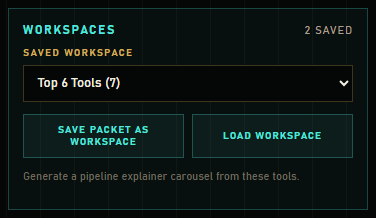
- Build a Source Packet, give it a title, then click Save Packet As Workspace.
- To reopen, pick a workspace from the dropdown and click Load Workspace — its records repopulate the Source Packet and its title/objective return.
09 Campaign Engine round trip
The strongest workflow is a loop, not a one-way export.
- Use DVP Vault to gather approved tools, assets, prompt recipes, and references into a Source Packet.
- Click Copy For Campaign Engine, then paste that packet into Campaign Engine's References stage.
- Build the campaign in Campaign Engine with Local Draft, AI Brain, or manual handoff.
- Edit slides, export creative tool packs, and review safe areas.
- Click Save Pack To Vault in Campaign Engine's Export stage.
- DVP Vault receives a versioned campaign memory record: the editable project, deliverable/readiness audit, prompts, asset links, export companions, and source lineage.
09b Campaign Memory
Campaign Memory collects versioned Campaign Engine saves with a replay payload. Each dossier summarizes deliverables, ready and blocked counts, missing copy or prompts, pending exports, linked assets, platforms, and VibeBoard source lineage. Filter by readiness or source, or select two dossiers and use Compare campaigns to review their production state side by side.
Open in Campaign Engine resumes the saved project through a one-shot local handoff. Start related campaign creates a named branch with the plan, copy, prompts, asset links, slides, and lineage intact while resetting export-completion state. Copy package JSON provides the same lightweight replay payload as a fallback.
Expand memory turns a campaign dossier into separate prompt and asset child records for focused reuse. The child identities are deterministic, so Refresh child records updates the set without multiplying duplicates.
Start in VibeBoard works on a campaign memory, one of its child records, or an approved VibeBoard direction. It stages a lightweight recall envelope with at most the reusable prompts and asset links needed for the branch; VibeBoard shows the source in its recall strip. Raw campaign package files and embedded data images do not travel. Publishing the approved branch back creates a new direction and source packet instead of mutating the source record.
09c QC & provenance memory
The Vault is the “Remember” step of the QC → Repair → Remember loop. Quality, repair, and provenance tools save compact searchable records rather than the source media itself.
- CineQC → Save to Vault: saves a QC record for a clip (the verdict, the metric scores, and the loudness), tagged cineqc. Use it to track how a model's quality holds up over time.
- Shot Doctor → Publish fixes to team library: publishes saved repaired prompts with failure categories, model, repair note, and recorded worked/did-not-work outcome. The team-library tag makes proven repairs easy to find.
- CineQC Provenance → Save to Vault: remembers the filename, C2PA verdict, origin, generator, chain depth, trust mode, and issue counts. The media bytes and raw manifest stay out of the Vault record.
Find them like any record: search by tool name, filename, model, or the cineqc, shot-doctor, team-library, provenance, and c2pa tags.
09d Motion DNA records
MotionPath saves Camera Motion DNA as a first-class Vault type (motion). Each record holds validated motion DNA, a model-neutral canonical instruction, translator version, optional model translations, parent motion id, and source tool. Motion records do not need asset rights, prompt expected-output text, a media path, or binary metadata.
Open the Motion DNA library section (or filter by type) to browse them. Search matches title, summary, tags, movement family, direction, primary subject, and canonical instruction.
Schema-format version vs local revision
Inside the DNA payload, top-level version is the frozen schema-format value 1. It does not bump when you iterate a move. Local draft lineage uses lineage.localRevision (a bounded positive integer). Vault storage must keep that schema-format version untouched.
Approved vs draft status
Use Vault status the same way as other records: draft while a move is still being shaped, approved when the library copy is the one you trust to hand off or reuse. Status is library workflow — it is separate from the DNA schema version and local revision.
Save as new version vs update in place
When MotionPath writes to Vault, Save as new version is the Vault action label and mode. It creates a new Vault motion record (and can set parentMotionId) without changing the DNA schema-format version. Explicit update-in-place / update-existing is a separate action that overwrites an existing motion record id when you intentionally refresh that library entry and want to preserve Vault history of that id. Do not treat “new version” as a schema bump.
Correlated save bridge
MotionPath opens Vault same-origin (or local file:) and sends a correlated postMessage save (dvp-save-motion / dvp.motionpath.vault-save/v1). Vault validates Motion DNA with the MotionPath core contract, writes one motion library record, and replies with dvp-motion-save-result counts plus the Vault record id and bounded lineage.localRevision. Wrong origins, oversized messages, bad correlation ids, and invalid DNA are rejected without a partial write.
Pick Motion DNA back into MotionPath
Open Vault with ?mode=pick-motion&target=motionpath&correlationId=… to browse only Motion DNA records. Select one and click Send To MotionPath to return a correlated dvp-motion-pick-result payload to the opener. Closing or cancelling the picker sends nothing and leaves MotionPath unchanged. Query strings never carry Motion DNA content—only mode, target, and a bounded correlation id.
JSON export recovery
Vault remains optional. If the browser blocks the Vault popup or local storage fails, keep working in MotionPath and use Export JSON / portable .motionpath.json recovery, then Import Vault JSON later once Vault is available. Exporting the Vault library itself also backs up motion records alongside everything else.
10b Desktop catalog & portable .dvp packages
The package also includes a local-first Python media catalog for projects, assets, tags, transcripts, thumbnails, storyboards, and audio proxies. This is separate from the browser campaign library above: both keep data local, but they use different stores and export formats.
- Import media into a catalog and assign the assets to a project.
- Optionally generate previews or local transcripts and their SRT, VTT, and TXT sidecars.
- Run dvp-vault export-package PROJECT_ID --catalog CATALOG --output OUTPUT to create a portable project-name.dvp directory.
- Add --force only when intentionally replacing an existing package.
Exports now read the project from one consistent catalog snapshot, keep each asset and transcript's sidecars in its own namespace, stage the package before replacement, and refuse an accidental overwrite unless forced. Catalog search also repairs its full-text index when the workspace opens.
09e Reusable Library
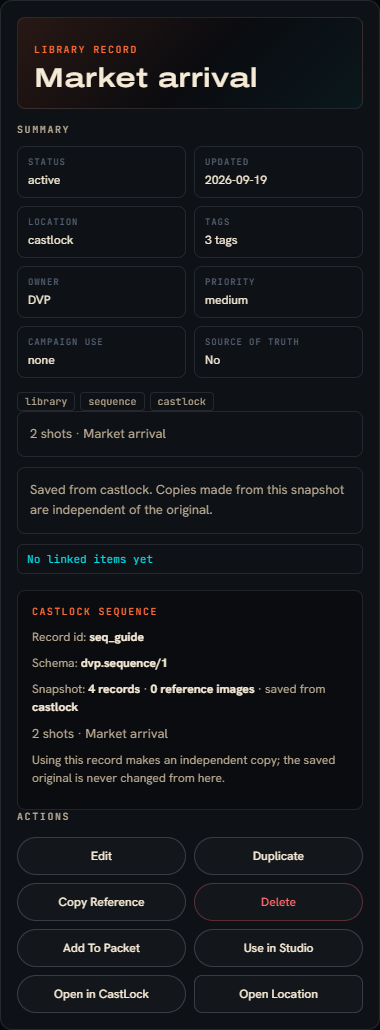
CastLock can save characters, locations, scenes and sequences here as library records. Studio can save complete characters from its character editor, plus scenes and sequences from Scene actions. Each record is a complete snapshot with the records it depends on, saved from whichever tool sent it. Saving the same record again updates the same entry and nothing else is touched.
Every Library record has Use in Studio and Open in CastLock. Both send a copy. The snapshot goes exactly as it was saved, so if the CastLock original moved on since then, you get the older version, on purpose. Studio asks where the copy should go before it adds anything. If a tool has not finished adding an earlier transfer, Vault asks whether to resume that one or cancel it and send this record instead. It never overwrites a waiting transfer quietly.
Health checks Library records too. A missing reference image is a warning, not a broken link. The image lives on another device or was removed; the direction still works.
10 Import a Campaign Engine project
There are two ways to close the loop: the newer Save Pack To Vault button from Campaign Engine, or a manual JSON import.
- In Campaign Engine, click Download Project JSON.
- In the Vault, click Import Vault JSON and choose that file. The Vault detects a Campaign Engine project automatically.
- It becomes searchable records: one project, one pack, an asset for each slide image, and a prompt for the captured LLM prompt — all added alongside your existing items.
11 Health checks
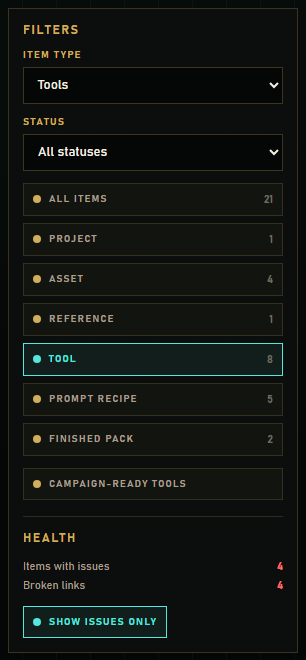
The Health panel keeps the Vault honest. It flags missing titles or summaries, missing locations on assets/projects/packs, broken linked references, duplicate titles, assets without rights, prompts without an expected output, campaign-ready items without tags, and motion-specific problems (missing/invalid Motion DNA, stale translator version, broken parent motion lineage).
- Read the issue counts in the Health panel.
- Click Show issues only to filter the list down to records that need attention.
12 Where your data lives
- Browser storage: your edits save to this browser's localStorage automatically.
- Seed files: canonical starting data lives in data/dvp-vault.seed.json, data/dvp-tools.seed.json, data/dvp-prompt-recipes.seed.json, and data/dvp-workspaces.seed.json.
- Reload Seed restores the starting library (replacing what's in the browser).
- Export JSON saves a dated backup (dvp-vault-YYYY-MM-DD.json); Import Vault JSON loads a backup or a Campaign Engine project.
- Offline: opening index.html directly (file://) works — the app falls back to a built-in copy of the seed since browsers block reading the JSON files over file://. Serve the folder to load the JSON files live.
13 Tips & FAQ
- "Preview not found" on an asset? Add the real image to the assets/ folder at the path in the asset's preview field.
- Keep titles tight. Short titles read better everywhere and avoid the "title too long" health-style problems downstream in Campaign Engine.
- Mark your sources of truth. The Campaign Engine reference text leads with source-of-truth and high-priority records under "Must include."
- Back up before big changes. Export JSON first; Reload Seed and imports replace the current library.
- Lost work? Your data is in this browser. Use a consistent browser/profile, and export regularly.