01 What the Vault is
DVP Vault stores the reusable memory behind your campaigns: projects, assets, references, tools, prompt recipes, and finished packs. It is the layer that answers "what tools exist, what's approved, what can Campaign Engine use right now?"
It does not replace Campaign Engine. Campaign Engine builds the campaign outputs; the Vault stores and assembles the source material those outputs are built from.
02 The layout
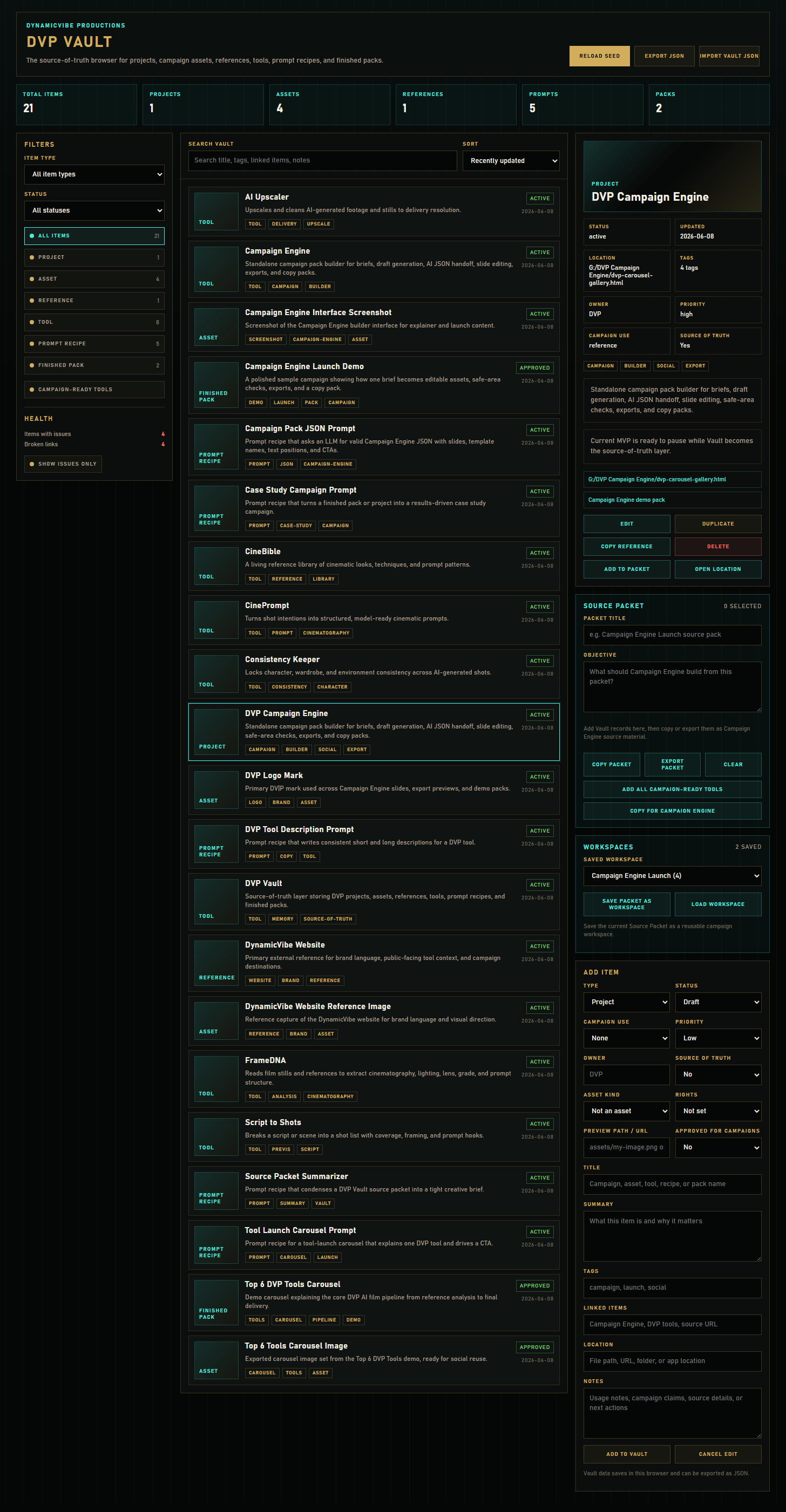
The app is a "Vault OS" shell: a command bar on top, three zones below, and a Source Packet tray docked at the bottom.
- Command bar (top): global search across campaigns, prompts, assets, and references, plus Reload Seed, Export JSON, and Import Vault JSON.
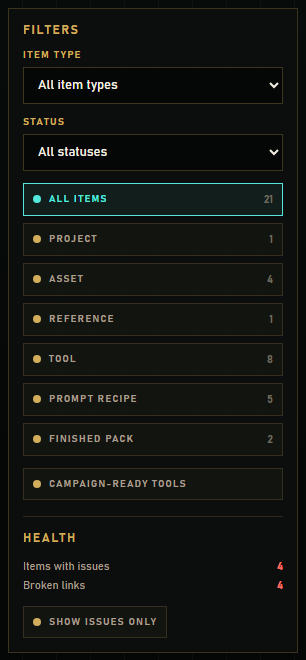
- Library (left): pick a section (Campaign Memory, Creative Directions, Assets & References, Prompt Recipes, Workspaces, All Records), each with a live count, then Refine by type, status, and sort, and read the Health panel.
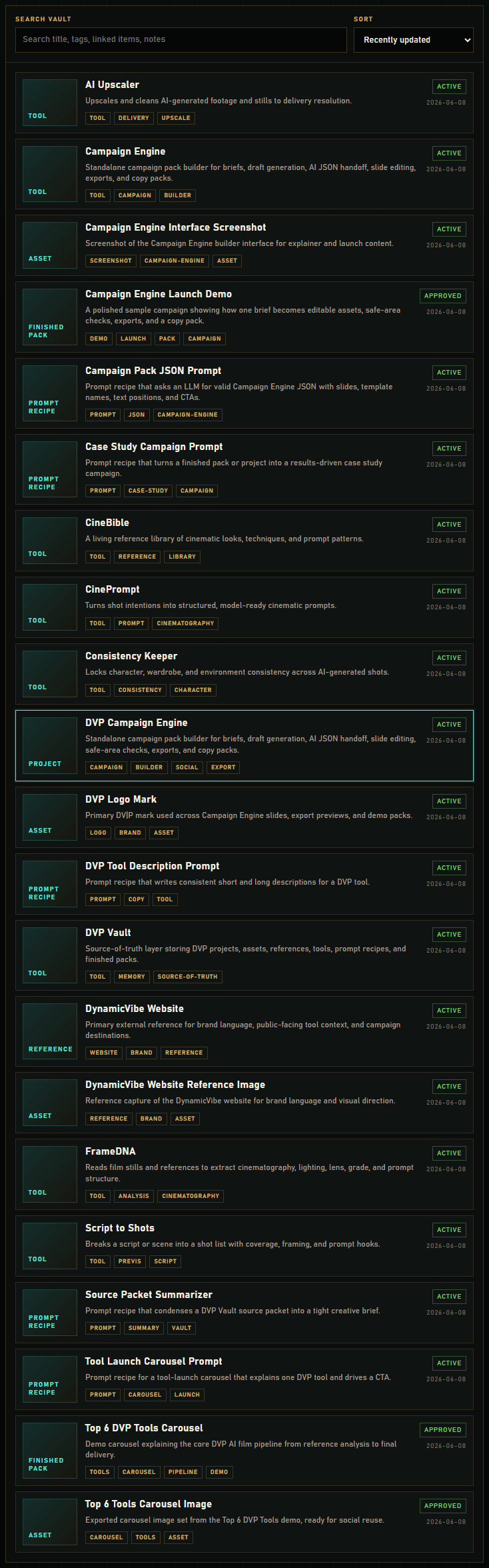
- Campaign Memory and records (middle): Campaign Memory is the home, showing saved campaigns as dossier cards with a readiness bar. Every other section shows a searchable, sortable record list.
- Inspector (right): the selected record's Summary, its Lineage strip (VibeBoard direction → Campaign Engine pack → Vault memory), Campaign Audit, and actions. The Add/Edit form lives here as a collapsible panel.
- Source Packet tray (bottom): a collapsible dock holding the Source Packet and Saved Workspaces. It stays tucked away until you open it.
03 Browsing & searching
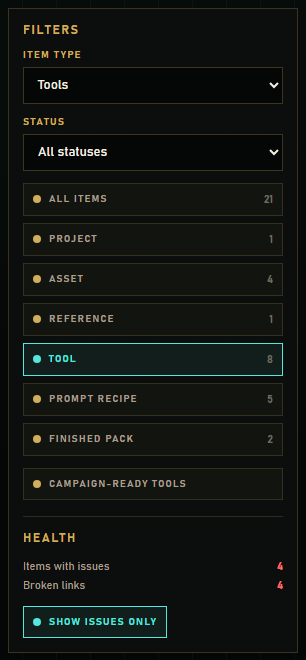
- Use Item type and Status dropdowns, or the quick type buttons, to narrow the list.
- Type in Search vault to match across title, summary, tags, linked items, location, and notes.
- Change Sort to order by recently updated, title, or type.
- Click Campaign-ready tools to show only tools that are active/approved and flagged for campaign use.
04 Reading a record
Click any item to load it in the detail panel. Every record shows status, last updated, location, tags, owner, priority, campaign use, and whether it is a source of truth. Three record types add a tailored section:
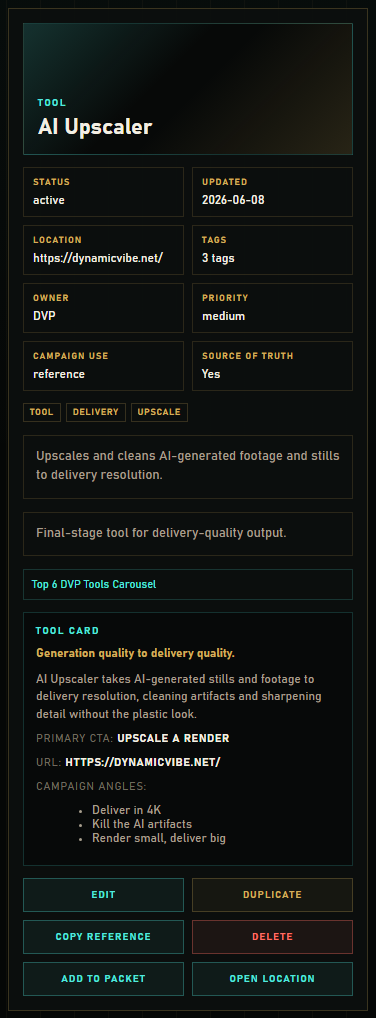
Tool card
Tools show a short claim, long description, primary CTA, URL, campaign angles, and related prompts — everything you'd want when pitching a tool in a campaign.
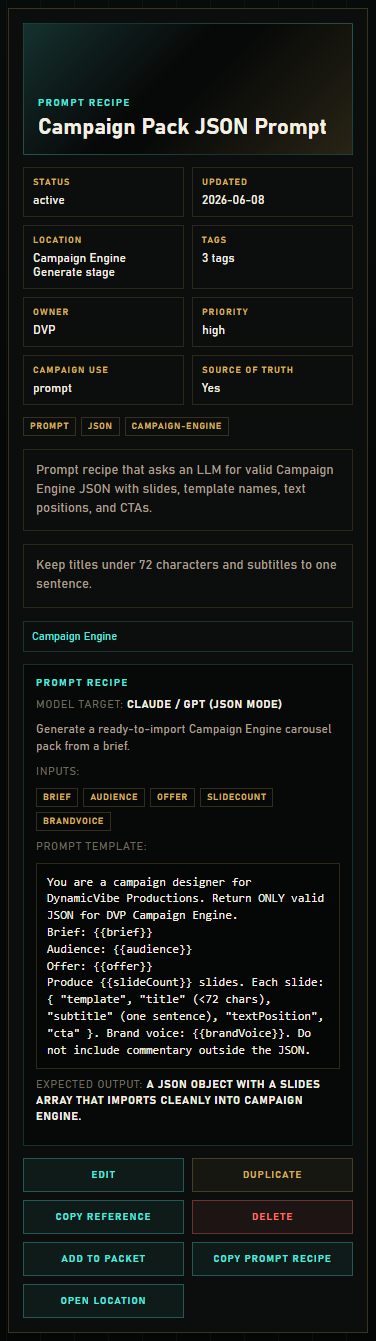
Prompt recipe
Prompt recipes show the model target, use case, inputs, and the full prompt template in a copyable block (see section 7).
Asset preview
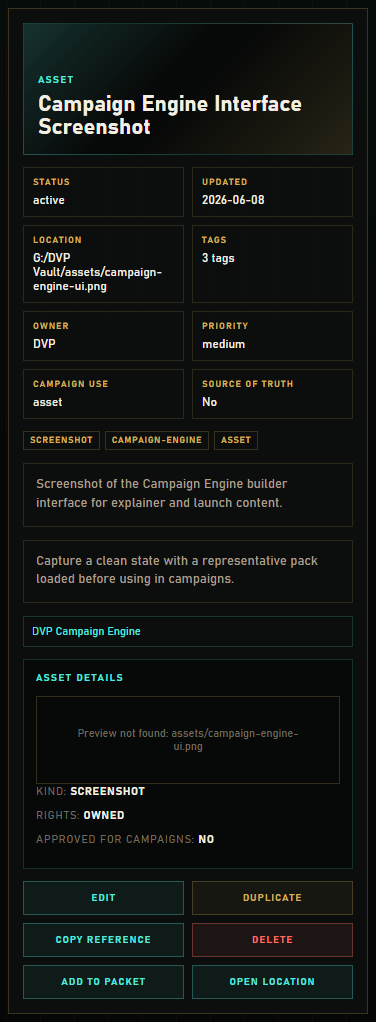
Assets show a preview image plus kind, rights, and whether they're approved for campaigns.
05 Add, edit, duplicate, delete
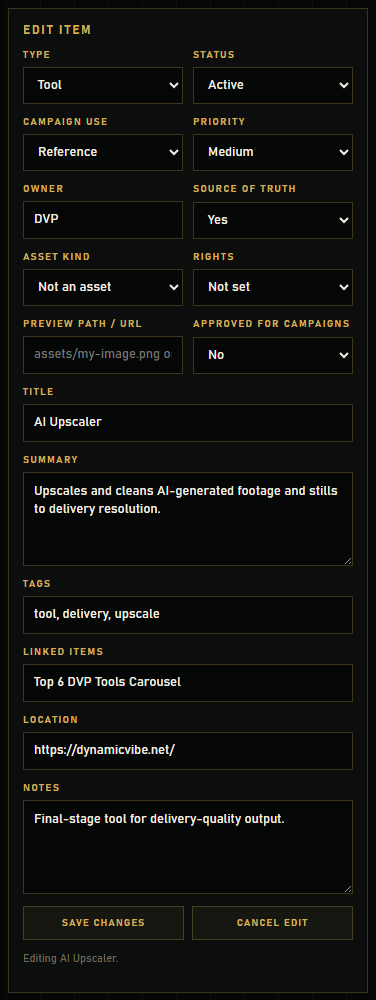
- Fill the Add Item form: type, status, campaign use, priority, owner, source-of-truth, asset fields (kind, rights, preview path, approved-for-campaigns), title, summary, tags, linked items, location, and notes.
- Click Add To Vault to save.
- To change a record, select it and click Edit — the form fills with its values and the button becomes Save Changes.
- Duplicate makes a draft copy; Delete removes a record (with confirmation).
06 Source Packets → Campaign Engine
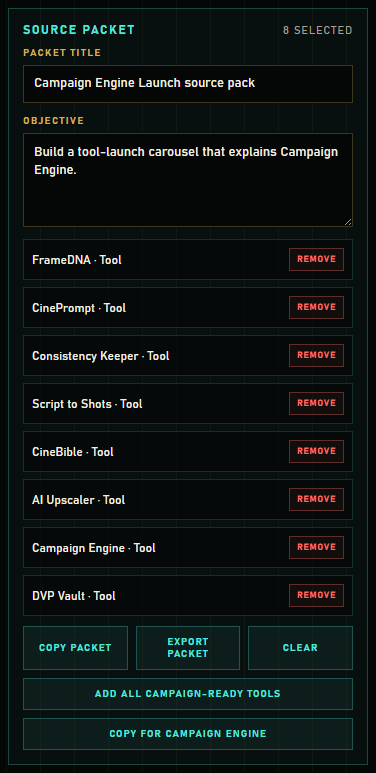
A Source Packet is the bridge to Campaign Engine. Gather the records a campaign needs, then copy them in a Campaign Engine-ready format.
- Select a record and click Add To Packet (or Add All Campaign-Ready Tools to grab every campaign-ready tool at once).
- Give the packet a title and an objective so the downstream brief is clear.
- Click Copy For Campaign Engine to copy a structured reference with Reference links, Reference assets, Required copy, Must include, Avoid notes, and Visual direction — paste it straight into Campaign Engine's References stage.
- Copy Packet copies a plain-text packet; Export Packet saves it as JSON; Clear empties the tray.
07 Prompt recipes
Prompt recipes are reusable, copyable instructions for an LLM. Open a recipe to see its template, then click Copy Prompt Recipe to copy the full recipe (model target, use case, inputs, template, and expected output). Recipes added to a Source Packet carry their template text along with them.
CinePrompt can save approved prompt recipes into DVP Vault. Consistency Keeper can save both prompt recipes and references. Those saves land as browser-local draft records first, then you can export Vault JSON when they are approved for the canonical repo data.
08 Campaign Workspaces
A workspace is a saved campaign — a named collection of records you can reopen later.
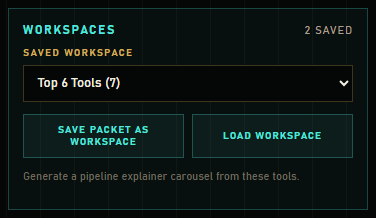
- Build a Source Packet, give it a title, then click Save Packet As Workspace.
- To reopen, pick a workspace from the dropdown and click Load Workspace — its records repopulate the Source Packet and its title/objective return.
09 Campaign Engine round trip
The strongest workflow is a loop, not a one-way export.
- Use DVP Vault to gather approved tools, assets, prompt recipes, and references into a Source Packet.
- Click Copy For Campaign Engine, then paste that packet into Campaign Engine's References stage.
- Build the campaign in Campaign Engine with Local Draft, AI Brain, or manual handoff.
- Edit slides, export creative tool packs, and review safe areas.
- Click Save Pack To Vault in Campaign Engine's Export stage.
- DVP Vault receives the finished campaign as a pack record containing the editable project, copy pack, creative tool pack, Runway scene pack, and Remotion scene plan.
09b Campaign Memory
Campaign Memory collects saved Campaign Engine packs that include a replay payload. Use it to audit readiness, source lineage, deliverables, and asset links, and to reopen a saved campaign in Campaign Engine, without turning the Vault into live project storage.
Open in Campaign Engine stages a one-shot local handoff so Campaign Engine can resume the campaign from the saved pack. Copy package JSON gives you the same lightweight replay payload as a fallback. The Campaign Memory panel filters your saved campaigns by readiness (Needs work / Ready) and by source (From VibeBoard).
Start in VibeBoard is the creative-direction branch. On eligible campaign memories, child records, and approved VibeBoard direction records, it stages a lightweight recall envelope and opens VibeBoard. The VibeBoard recall strip shows the source memory, but the Vault record remains unchanged until you publish a new approved direction back to Vault.
09c The QC loop: records from CineQC & Shot Doctor
The Vault is the “Remember” step of the QC → Repair → Remember loop. Two other tools save straight into it, so a fix you found once becomes a lookup next time.
- CineQC → Save to Vault: saves a QC record for a clip (the verdict, the metric scores, and the loudness), tagged cineqc. Use it to track how a model's quality holds up over time.
- Shot Doctor → Save to Vault, or Publish fixes to team library: saves the diagnosis and repaired prompt, tagged shot-doctor and team-library, with the failure categories and the model. A whole team accumulates what repairs what.
Find them like any record: search by tool name, or filter on the cineqc, shot-doctor, or team-library tags. Open a saved fix to reuse its repaired prompt on the next attempt.
10 Import a Campaign Engine project
There are two ways to close the loop: the newer Save Pack To Vault button from Campaign Engine, or a manual JSON import.
- In Campaign Engine, click Download Project JSON.
- In the Vault, click Import Vault JSON and choose that file. The Vault detects a Campaign Engine project automatically.
- It becomes searchable records: one project, one pack, an asset for each slide image, and a prompt for the captured LLM prompt — all added alongside your existing items.
11 Health checks
The Health panel keeps the Vault honest. It flags missing titles or summaries, missing locations on assets/projects/packs, broken linked references, duplicate titles, assets without rights, prompts without an expected output, and campaign-ready items without tags.
- Read the issue counts in the Health panel.
- Click Show issues only to filter the list down to records that need attention.
12 Where your data lives
- Browser storage: your edits save to this browser's localStorage automatically.
- Seed files: canonical starting data lives in data/dvp-vault.seed.json, data/dvp-tools.seed.json, data/dvp-prompt-recipes.seed.json, and data/dvp-workspaces.seed.json.
- Reload Seed restores the starting library (replacing what's in the browser).
- Export JSON saves a dated backup (dvp-vault-YYYY-MM-DD.json); Import Vault JSON loads a backup or a Campaign Engine project.
- Offline: opening index.html directly (file://) works — the app falls back to a built-in copy of the seed since browsers block reading the JSON files over file://. Serve the folder to load the JSON files live.
13 Tips & FAQ
- "Preview not found" on an asset? Add the real image to the assets/ folder at the path in the asset's preview field.
- Keep titles tight. Short titles read better everywhere and avoid the "title too long" health-style problems downstream in Campaign Engine.
- Mark your sources of truth. The Campaign Engine reference text leads with source-of-truth and high-priority records under "Must include."
- Back up before big changes. Export JSON first; Reload Seed and imports replace the current library.
- Lost work? Your data is in this browser. Use a consistent browser/profile, and export regularly.